Using Machine Translation
Virtual assistants built on the DRUID platform can seamlessly handle conversations in over 100 languages by integrating with machine translation services like SDL Machine Translation Cloud, Azure Translator, or a chosen Large Language Model (LLM).
This functionality eliminates the need for manual translation of bot content and conversation flows, saving effort when your bot encounters user queries in languages other than its default. You author the bot in one language (e.g., English), and the machine translation service automatically translates user input, bot messages, and even buttons in real time.
Translation Options: Conversation Time vs. Authoring Time
By understanding the distinctions between Conversation Time Translation and Authoring Time Translation, users can effectively optimize translation costs and streamline bot localization efforts. Conversation Time Translation occurs during conversations when language changes are detected (the [[ChatUser]].Language is different from the bot authoring languages), while Authoring Time Translation enables bulk translation of bot flows during authoring, reducing translation expenses. Selecting both options allows dynamic switching between real-time machine translation and DRUID NLP based on language changes during conversations.
Imagine that you have a bot authored in various languages hosted in an online shop and you need the bot to be always active. Using the conversation time translation in this scenario leads to high costs for having the messages translated in real-time; for each message translation, the bot calls the SDL/Azure machine translation service. Translating the bot at authoring time is more cost-effective, enabling the bot to use DRUID NLP for the bot authoring languages instead of calling the SDL machine translation service.
Understanding the two primary translation options can help you manage costs and efficiency:
| Feature | Conversation Time Translation | Authoring Time Translation (SDL only) |
|---|---|---|
| When it Occurs | Real-time, during the chat, when a new language is detected. | Bulk translation of bot flows during the bot-authoring process. |
| Provider | SDL, Azure, LLM, or eTranslation | SDL (all environments) or Azure Document Translation (hybrid/on-premise). |
|
DRUID calls the Machine Translation Cloud service |
Every time a message is written in the chat |
When authoring the bot (flows configuration) |
| Enables bot translation in bulk |
No |
Yes |
|
Translation Cost Structure |
Per message |
Per flow authored element |
|
Customize message(s) translation |
No |
Yes |
|
Voice bots using machine translation |
Yes |
Yes |
Set up machine translation on the bot
To enable and configure a translation provider:
- Navigate to the bot settings, Details tab.
- Click the Languages section header.
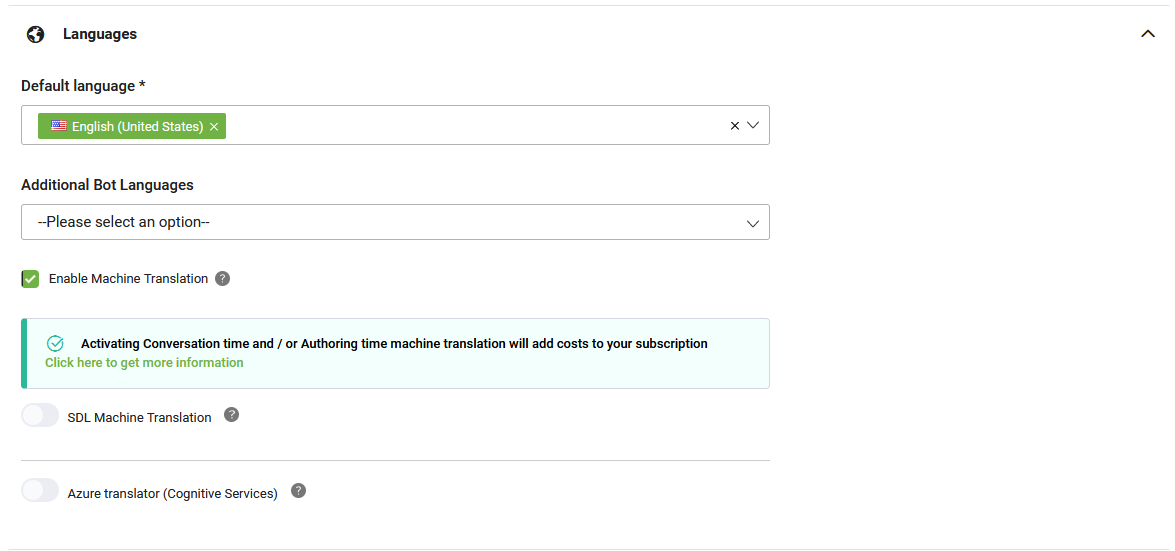
- Select Enable Machine Translation.
- Turn on the toggle next to your desired translation provider: Use LLM Translation, Azure translator (Cognitive Services), SDL Machine Translation, or Use eTranslation.
- Provide the specific configuration details for the chosen provider. Refer to the subsequent sections for specific guidance.
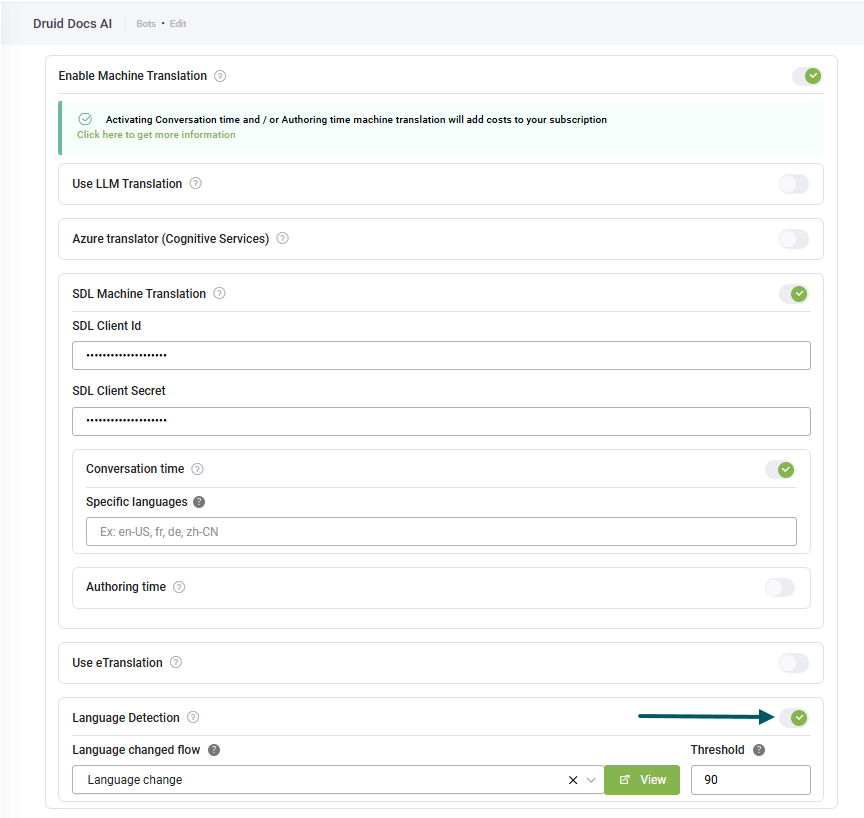
- Turn on the Language Detection toggle to provide the bot to detect and adapt to user language changes in real time. For more information, see Enable language change detection.
- Click Save at the bottom of the page.
Use LLM machine translation
 In Druid 9.11 and higher
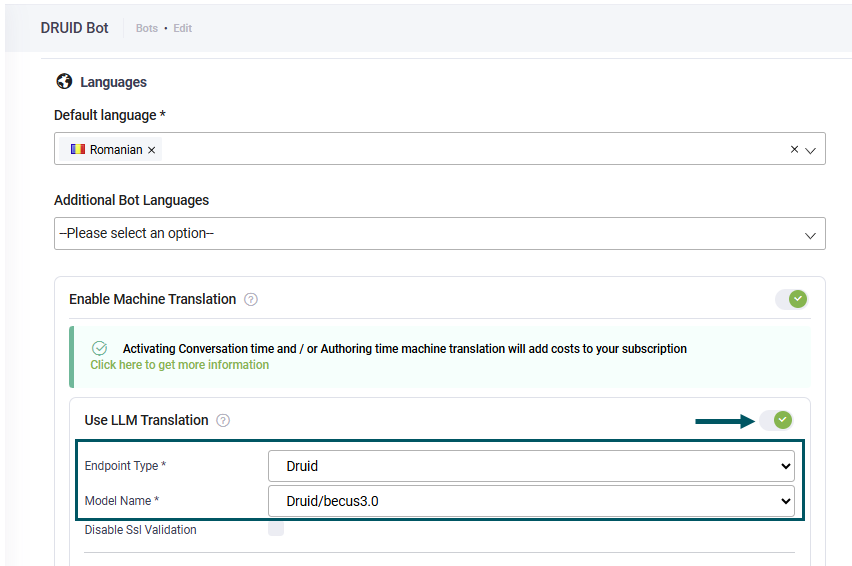
To use LLM machine translation, follow these steps:
- Turn on the Use LLM Translation toggle.
- From the Endpoint Type field, select one of the following options:
- Druid if you have an LLM subscription with Druid.
- My resource if you are using your own generative endpoint.
- Select the Model Name. In the dropdown, you will see all your resources created in Administration > LLM Resources.
- For both prompts, click the Set default button. The default Druid prompts will be automatically filled in.
- Click Save.
In Druid versions prior to 9.11
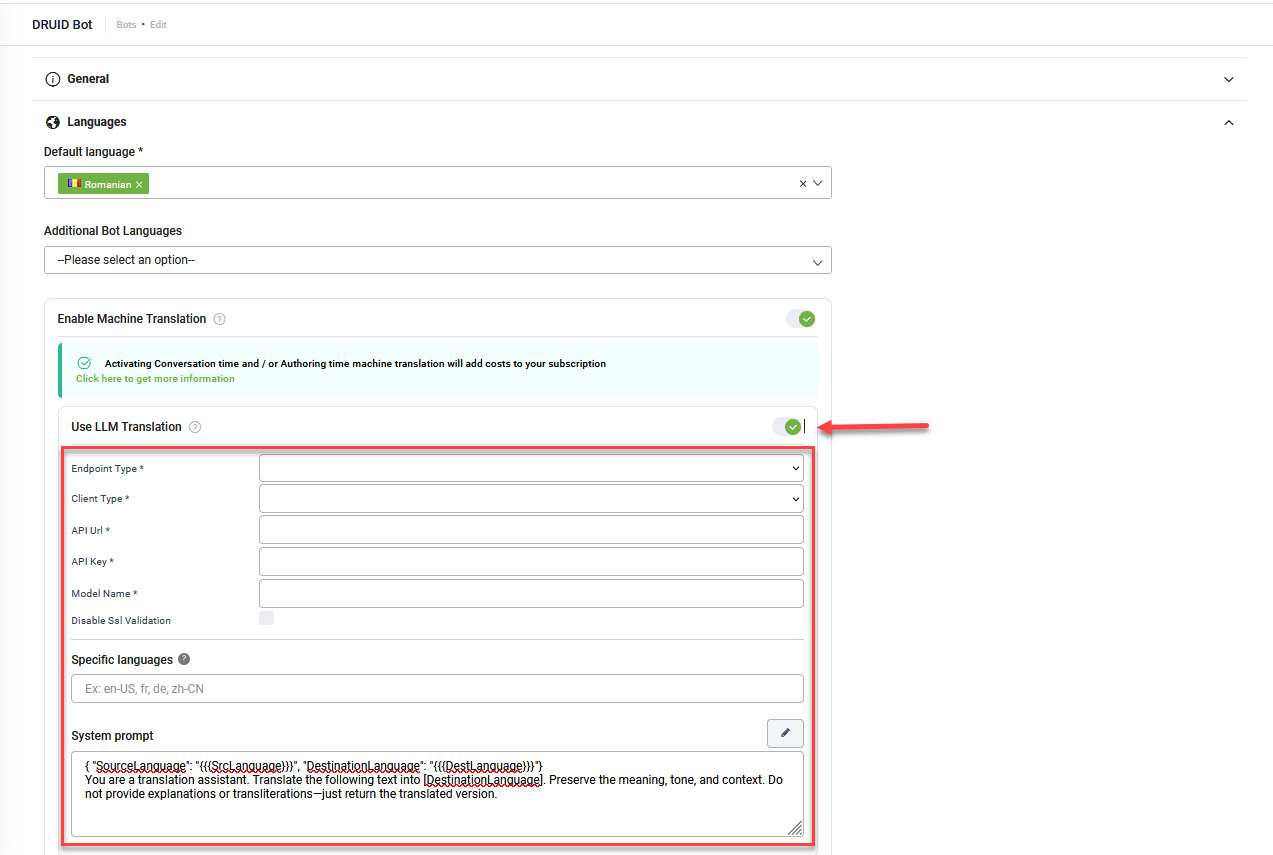
To use LLM machine translation, follow these steps:
- Turn on the Use LLM Translation toggle.
- From the Endpoint Type dropdown list, select:
- Druid if you have an LLM subscription with DRUID.
- Custom if you are using your own generative endpoint.
- From the Client Type dropdown list, select the client.
- If you selected a custom endpoint, provide the following details:
- Enter the URL of the generative API.
- Provide the secret key generated in your generative account.
- Specify the generative model name.
- If you selected Google as the Client Type, enter the Location for Vertex AI and your Google Project Id.
- Leave the Specific languages field empty.
- For the System prompt, click the Set default button.
- To use machine translation during conversations, turn on the Language Detection toggle to allow the bot to detect and adapt to user language changes in real time. For more information, see Enable language change detection.
- Click Save.
Use Azure Translator services
To use Azure Translator, turn on the Azure translator (Cognitive Services) toggle.
Initial Configuration
Provide the following details:
- Azure translator region: The Resource Region you set when creating your Azure Translator project.
- Azure translator key: The authentication key you receive after setting up your Azure Translator resource in the Azure portal.
Use Custom Dictionaries
Custom dictionaries enhance translation accuracy by providing user-defined translations for specific terminology, ensuring consistency with your branding.
In your Azure Translator project, publish the models associated with your custom dictionaries. See the Microsoft Custom Translator Quickstart guide for instructions.
Copy the Category ID for each translation model.
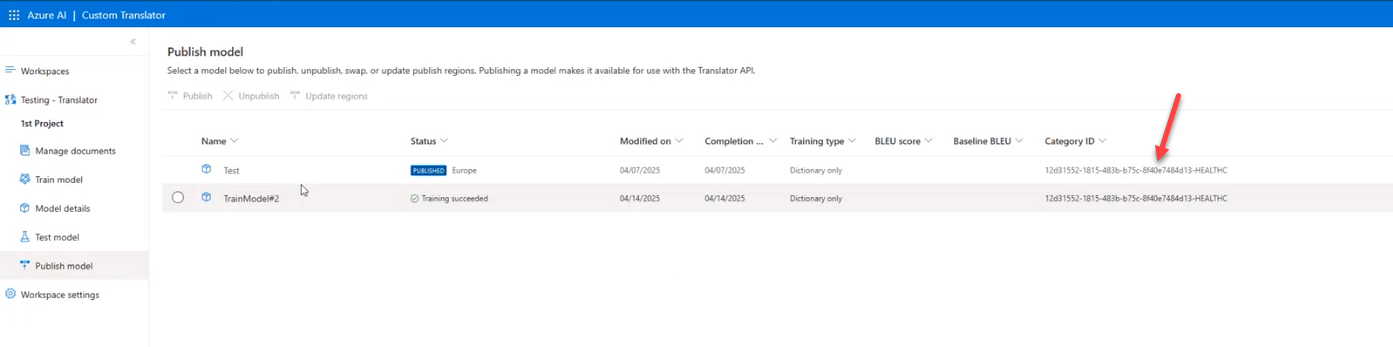
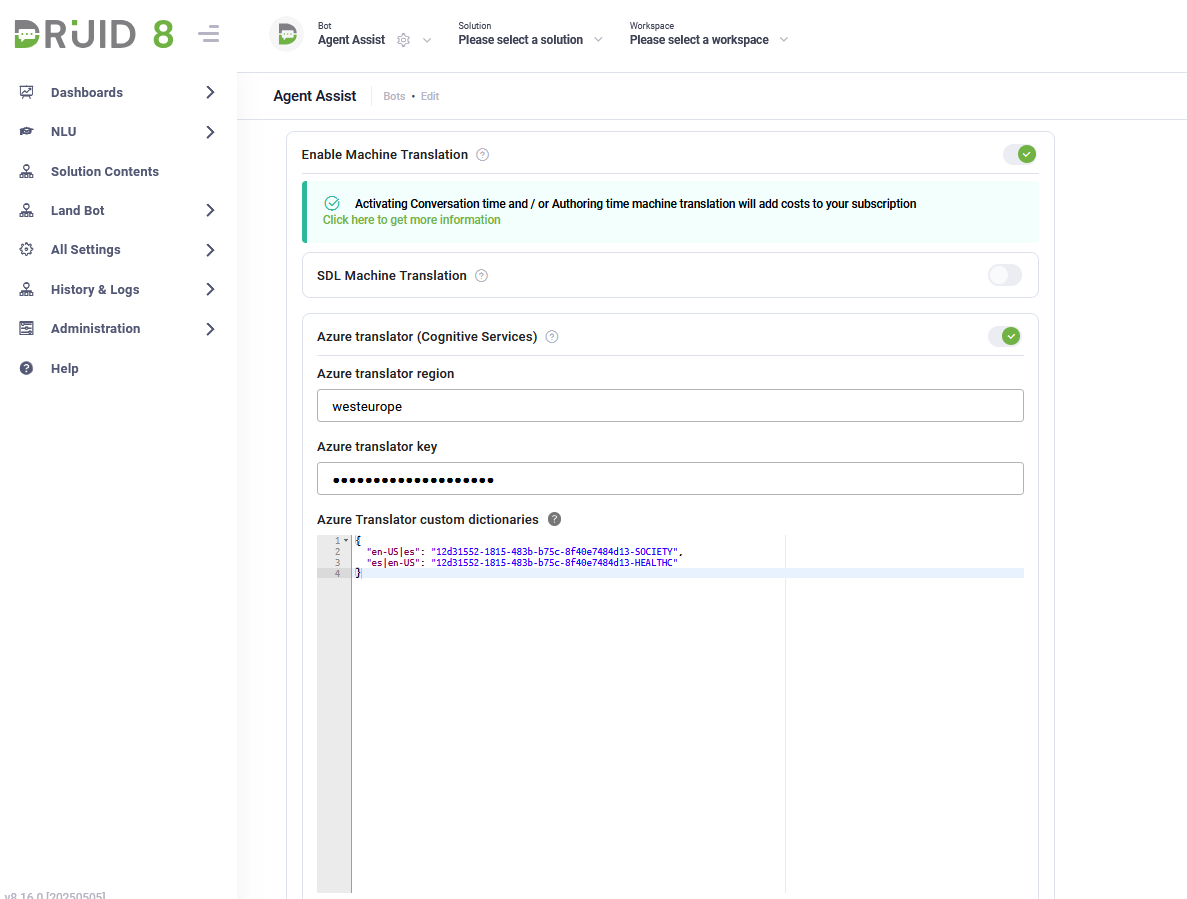
In the Azure Translator custom dictionaries field, enter a JSON object that maps language pairs to their Category IDs:
- The key is a language pair (source and target codes) separated by a vertical bar (|).
- The value is the Category ID for the relevant translation model.
Custom translations between English (United States) and Spanish
{
  "en-US|es": "12d31552-1815-483b-b75c-8f40e7484d13-SOCIETY",
  "es|en-US": "12d31552-1815-483b-b75c-8f40e7484d13-HEALTHC"
}
Azure Translator for Conversation Time Translation
Turn on the Conversation time toggle to use Azure Translator for real-time translation during chat.
Cloud Deployment
- Leave the Specific languages field empty.
- To use machine translation during conversations, turn on the Language Detection toggle to allow the bot to detect and adapt to user language changes in real time. For more information, see Enable language change detection.
- Click Save The automatic machine translation service from Azure Translator will be activated.
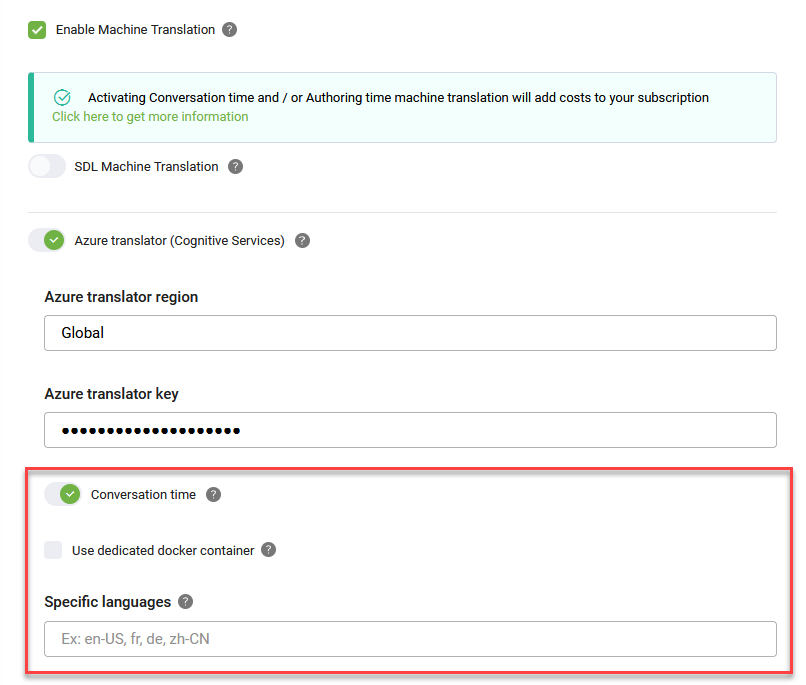
On-Premise Deployment
If you use Azure Translator services in an on-premise container:
- Select the Use dedicated docker container checkbox.
- In the Container address field, enter the container's URL.
- Leave the Specific languages field empty.
- To use machine translation during conversations, turn on the Language Detection toggle to allow the bot to detect and adapt to user language changes in real time. For more information, see Enable language change detection.
-
Click Save.
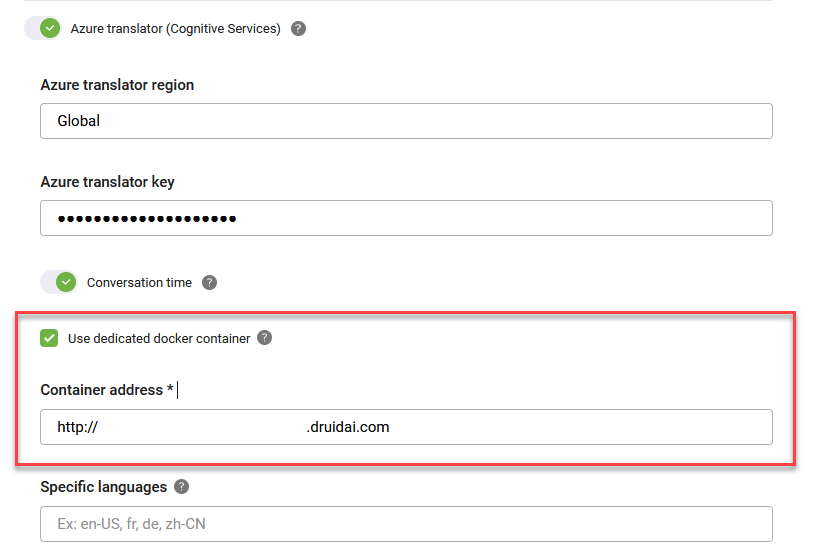
Azure Translator for Authoring time translation
Authoring time translation uses the cloud-based Document Translation feature of Azure Translator. On-premise installations do not support this feature.
Hybrid Deployment (Cloud Service)
Use this option to configure your bot to use the cloud-based Document Translation service for authoring time translation in a hybrid deployment.
Prerequisites
- You have an active Azure account. If you don't have one, you can create a free account.
- You need to retrieve your Document Translation endpoint from the Azure portal.
- Allow outbound calls from DRUID to the Document Translation endpoint.
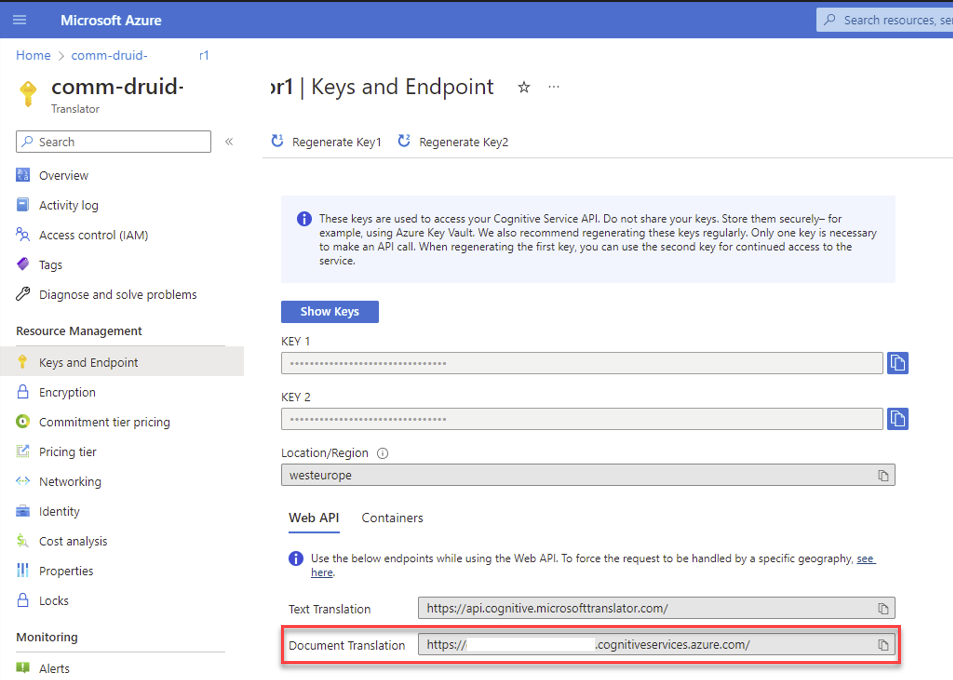
For information on how to retrieve the Document Translation endpoint, see Microsoft documentation.
Configuration steps
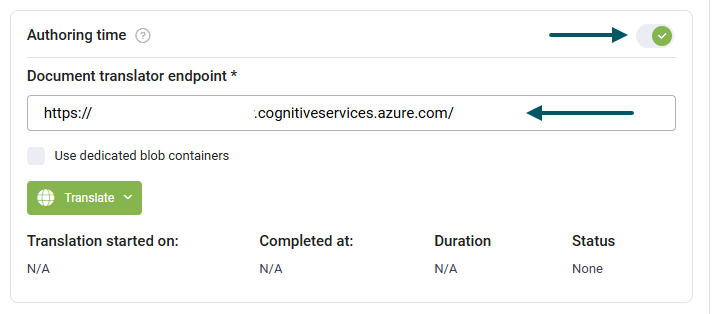
- Turn on the Authoring time toggle.
- In the Document translator endpoint field, enter the custom domain endpoint of the Document Translation service from the Azure portal.
- Click Save.
On-Premise Deployment (Dedicated Containers)
Use this option if you need to use dedicated Azure Blob Storage containers for file handling during translation.
Prerequisites
- You have an active Azure account. If you don't have one, you can create a free account.
- You need to retrieve your Document Translation endpoint from the Azure portal.
- For information on how to retrieve the Document Translation endpoint, see Microsoft documentation.
- You have an Azure Blob Storage account. Create containers in your Azure Blob Storage account as follows:
- Source container. This container is where DRUID uploads the files (authoring content) for translation.
- Container for translation. This container is where the Document Translation takes the files for translation.
- Target container. This container is where the Document Translation puts the translated files.
- Delete container. This container is where the translated files from the target container are put after deletion. After DRUID picks up the translated files, the target container is cleaned up and the files are moved to the delete container.
- You also need to create Shared Access Signature (SAS) tokens for the four containers you created in Azure Blob Storage. When generating the SAS token, make sure that:
- Your source container has designated read, add, create and write access.
- Your container for translation has read and list access.
- Your target container has designated write and list access.
- Your delete container has designated read, delete and list access.
- Allow outbound calls from DRUID to the Document Translation endpoint and to Azure Blob Storage URIs.
Configuration steps
- Turn on the Authoring time toggle.
- In the Document translator endpoint field, enter the custom domain endpoint of the Document Translation service from the Azure portal.
- Select the Use dedicated blob containers checkbox.
- Enter the Shared Access Signature (SAS) token URIs for your containers in the corresponding fields:
- Click the Save.
| Field | Description |
|---|---|
| Private source container with SAS | The Shared Access Signature of the Source container in URI format. |
| Private destination container with SAS | The Shared Access Signature of the Delete container in URI format. |
| Public source container with SAS | The Shared Access Signature of the Container for translation in URI format. |
| Public destination container with SAS | The Shared Access Signature of the Target container in URI format. |
Use SDL machine translation services
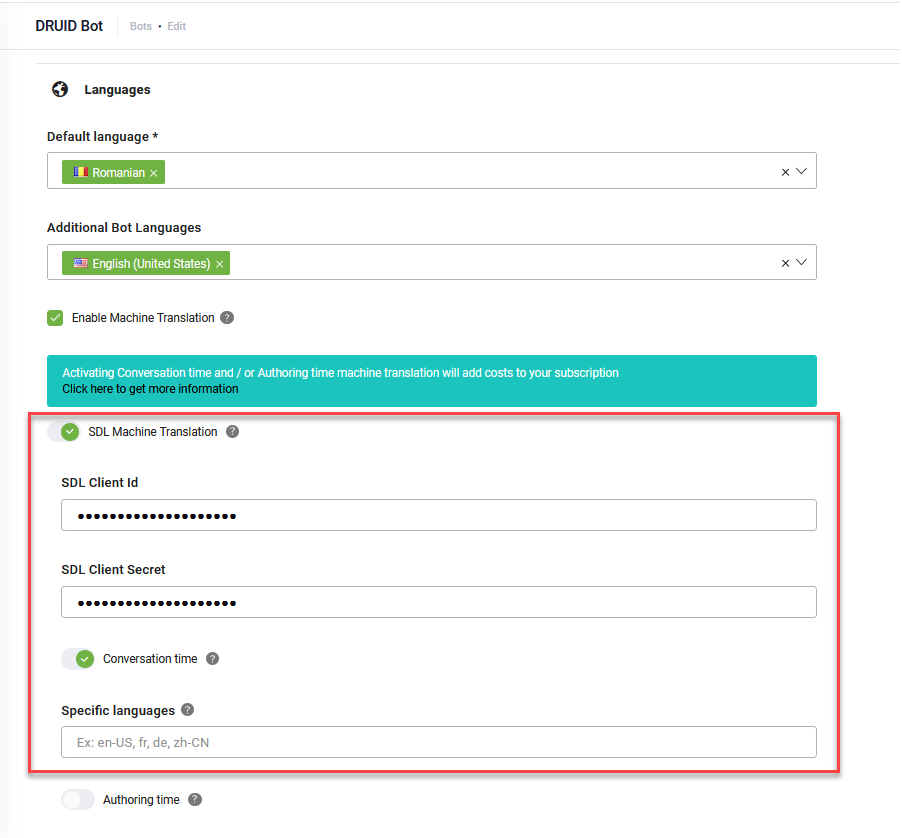
- Turn on the SDL Machine Translation toggle.
- Enter your SDL Client Id and SDL Client Secret. These are the credentials associated with your SDL account.
- Choose your desired translation option by turning on the corresponding toggle: Conversation time or Authoring time.
- Leave the Specific languages field empty.
- To use machine translation during conversations (Conversation time), turn on the Language Detection toggle to allow the bot to detect and adapt to user language changes in real time. For more information, see Enable language change detection.
- Click Save.
Use eTranslation services
The eTranslation provider gives your virtual assistant a specialized, high-quality translation service for real-time, domain-specific communication.
Prerequisites
- You have an eTranslation account.
Configuration steps
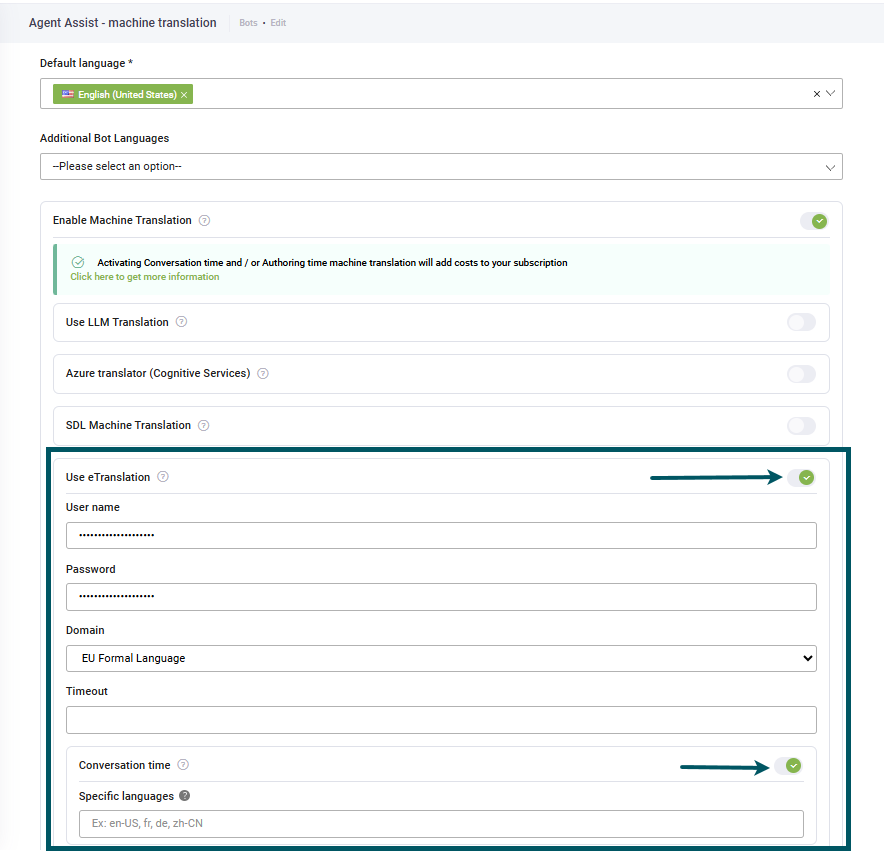
- Turn on the Use eTranslation toggle.
- Enter the following details:
- Turn on the Conversation time toggle.
- Leave the Specific languages field empty.
- To use machine translation during conversations (Conversation time), turn on the Language Detection toggle to allow the bot to detect and adapt to user language changes in real time. For more information, see Enable language change detection.
- Click Save.
| Field | Description |
|---|---|
| User name | Enter the username provided to you by the eTranslation service administrator. |
| Password | Enter the password associated with the specified username. |
| Domain | Specify the domain (or topic) that best describes the type of content your bot will be translating (e.g., 'Finance', 'General Text', etc.). Selecting the correct domain ensures that the translation model uses appropriate terminology, significantly improving translation quality. |
| Timeout | Specify the maximum time (in seconds) that DRUID should wait for a response from the eTranslation service before considering the request a failure. This helps manage flow execution and prevents indefinite waiting times. |
Enable Language Change Detection
Language change detection equips DRUID with the ability to detect when a user starts speaking a language different from the bot's default language. This ensures seamless, multilingual communication and occurs before the Intent not found flow is triggered.
- Users can change the current language while the bot is idle or within a flow. If the language changes inside an active flow, the flow is canceled.
- This feature does not apply to cases where users manually change the conversation language using a snippet's Language option.
Prerequisites
Before enabling detection, complete one of the following:
- Import the Language detection flow solution template from the Solutions Library.
- Define a flow to handle the actions triggered when a language change is detected.
Set up language detection
Follow these steps to set up language detection:
-
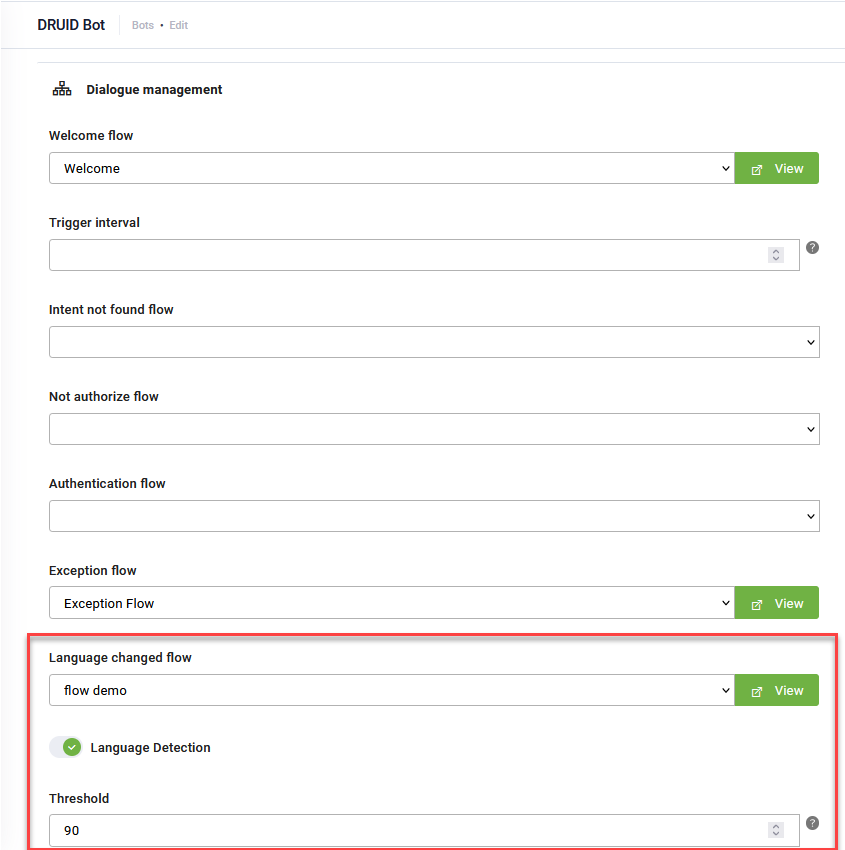
Go to the bot details, General tab and click the Dialogue management section header.
-
From the Language changed flow field, select the flow that should be triggered when a language change is detected. If you imported the solution template, select Language change.
-
Click the Languages section header.
-
Turn on the Language detection toggle. The Threshold field becomes editable.
-
In the Threshold field, set a value (a threshold of 90 is recommended).
- Click the Languages section header.
- Turn on the Language Detection toggle.
- Click Save.
Trigger conditions
The selected Language changed flow triggers only when all the following conditions are met simultaneously:
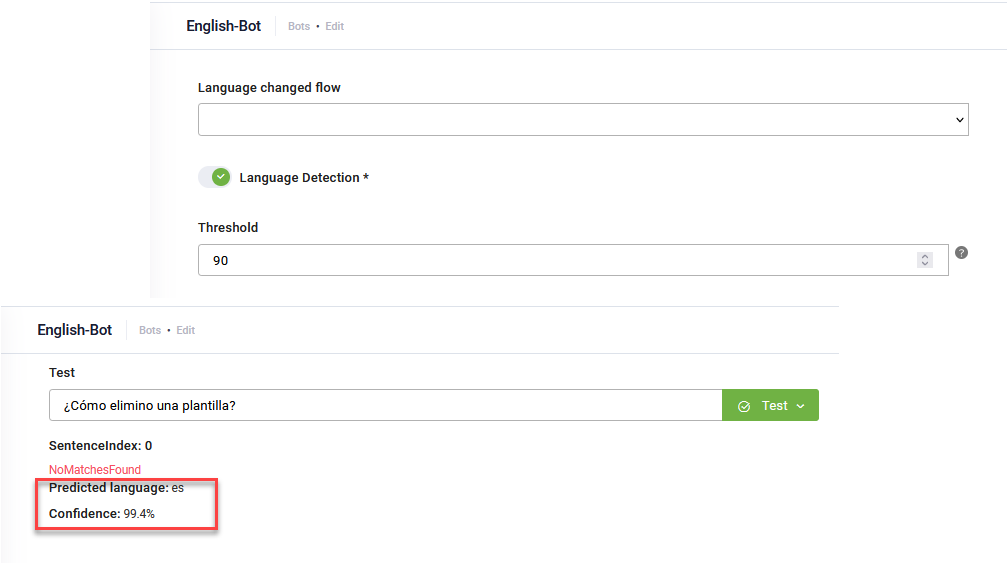
- The detected language ([[ChatUser]].DetectedLanguage) is different from the current user language ([[ChatUser]].Language).
- The detected language confidence score ([[ChatUser]].DetectedLanguage.Score) is higher than the threshold set in the NLP.Language.Detection.Threshold parameter.
- The same new language has not been identified as a language change trigger in the last 15 minutes. This prevents continuous re-triggering due to brief or non-committal uses of foreign words.
Related Topics